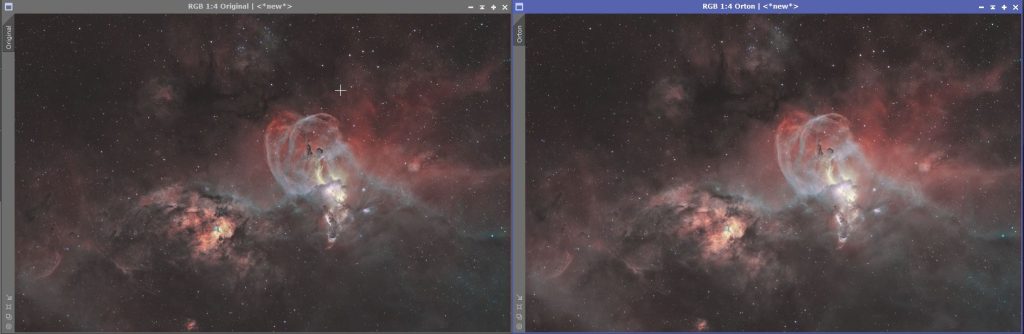
As many subscribers to my YouTube channel already know, I have just created a new script to implement an Orton Glow effect from within PixInsight. It emulates the steps you would use to produce the effect from within Photoshop.
First an foremost, the repository link is: Orton Glow Repository Link. Note though that this link is not a direct link, it will show an error, to use it add it to your repositories within PixInsight. Once added you can check for updates and PixInsight should find and download the latest version.
The script is designed to be run from the top down.
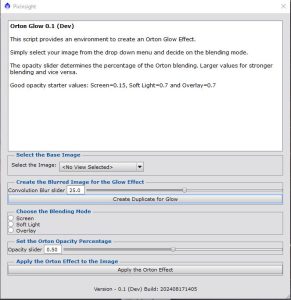
- Select the image that you would like to apply the Orton Effect to.
- Choose the blur level for the Glow layer.
- Create the Glow layer.
- Choose the blending mode that you would like to use for the Orton Effect. These modes are analogous to the modes found within most photo editing software, such as Photoshop.
- Select the opacity for the effect, this determines how much of this new Orton Effect to apply to the base image.
- Apply the Orton Effect to your image.
The final image has had the original luminance layer added back via an LRGB combination. The reason for this is to preserve the details that are otherwise lost due to the Orton Effect.
The first hurdle to jump over will be the implementation of a preview window, so that you can see the effect of the various blending modes and sliders before you apply the effect to your actual image. Once that is achieved I am thinking I might remove the LRGB combination and instead apply a luminance or range mask so that the effect only applies to the brighter regions and not the shadows.
Let me know (on Youtube, Facebook or Instagram) if you have been successful (or unsuccessful) with installing the script and what you’d like changed or added in future updates.